Crop Image Online Free, Any Aspect Ratio in Browser

Upload image and crop JPG, PNG, WebP, or AVIF to 1:1, 16:9, 9:16, 4:5, 3:2, 4:3, or custom px.

or drop the image here

About this tool

Crop image online free to any rectangular area right in your browser, no software install required. Upload image as JPG, PNG, WebP, or AVIF and the crop canvas opens immediately. Drag handles to position your selection, lock a ratio (1:1, 16:9, 9:16, 4:5, 3:2, 4:3, or A4) for any social media post or profile picture upload, or type exact pixel dimensions in the width and height fields. The live readout shows output size in real source pixels before download. Your image stays on your device throughout the session: the Network tab in DevTools shows zero outbound image requests during the crop. PNG and WebP output preserve a transparent background from the source file, JPG output replaces transparent areas with white. EXIF metadata is stripped from every export for privacy. The tool fits anyone needing a fast precise rectangular crop.

Open the crop image tool
How the crop tool works in your browser

How the crop tool works in your browser

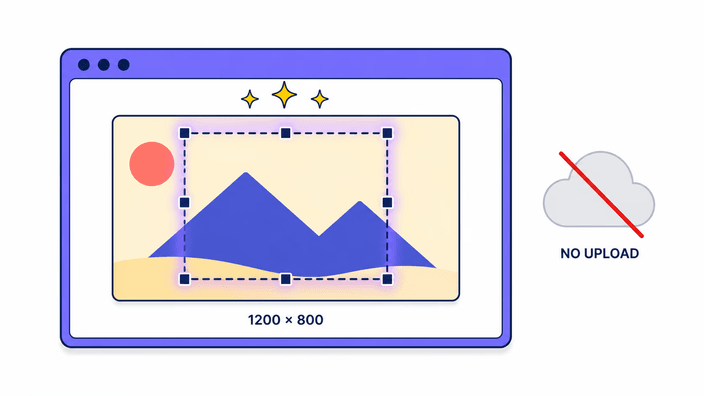
Upload image and the browser opens it directly via the File API. This is a free online crop image tool: no server upload happens, no temporary copy is stored outside your device. Drag the crop frame to position, resize from corners or edges, and the live pixel readout updates as you drag. Coordinates are in source-image pixel space, so the number shown is the literal output size. Open DevTools, switch to Network during the crop: no outbound image request appears. Files stay entirely on your device.
Crop image now
Lock a ratio for social media or profile picture sizes

Lock a ratio for social media or profile picture sizes

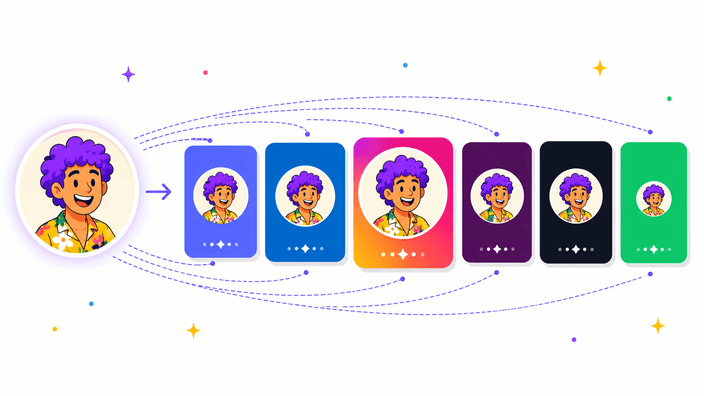
Tap a ratio chip (1:1 for Instagram square, 4:5 for portrait feed, 9:16 for Story/Reel, 16:9 for YouTube, 4:5, 3:2, or 4:3) and the selection frame locks to that proportion for any social media or profile picture upload. Drag it anywhere on the image to choose what to keep. To hit a specific pixel target, type the width and height into dimension fields. Output equals the selection's source-pixel size, the tool does not upscale.

Crop image now
JPG output replaces transparent background with white

JPG output replaces transparent background with white

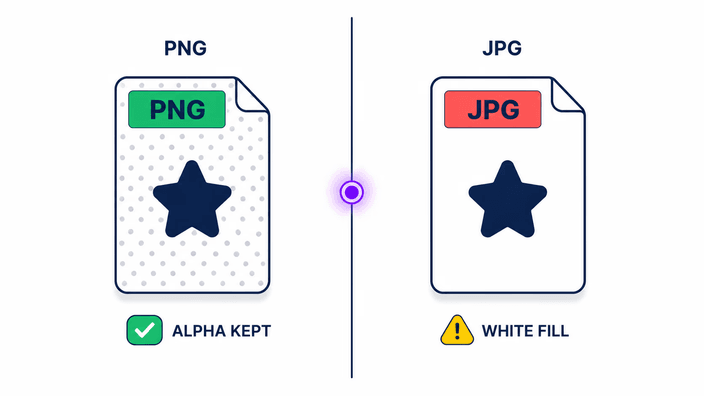
If your source file has transparent background (PNG, WebP with alpha, or AVIF with alpha) and you choose JPG as the output format, those transparent pixels are filled with white. JPG has no alpha channel. To preserve the transparent background, choose PNG, WebP, or AVIF on the format selector. PNG and WebP output carry the original alpha channel through unchanged. The format selector labels each option so the trade-off is visible before download.

Crop image now
Move the selection precisely with the keyboard

Move the selection precisely with the keyboard

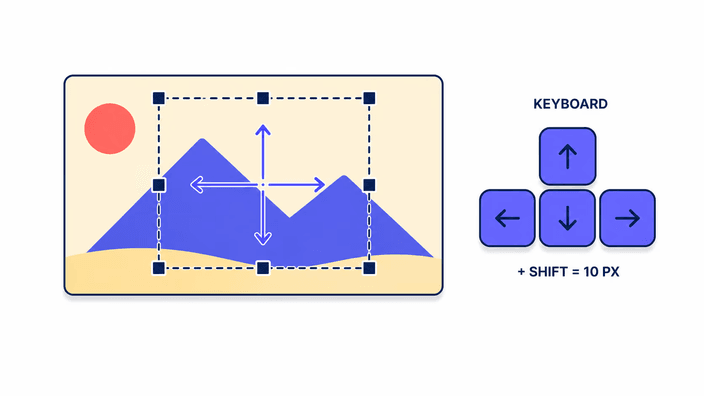
Tab to the crop frame, then press the arrow keys to nudge the selection one pixel at a time. Hold Shift and the step jumps to ten pixels. This keyboard navigation is built into cropperjs v2 as native functionality, not a separate accessibility layer. Useful when you need sub-pixel alignment that a trackpad cannot deliver, or for keyboard-only setups. The selection also responds to touch on mobile: pinch to zoom, then drag corners to reframe.

Crop image now
Output formats: PNG, JPG, WebP, and AVIF (all free online)

Output formats: PNG, JPG, WebP, and AVIF (all free online)

After cropping, choose your download format on the done screen, all four free online with no watermark. PNG is lossless and preserves transparent background. JPG applies lossy compression at quality 0.9, visually indistinguishable from source on most photos. WebP balances lossless and lossy modes and supports alpha. AVIF is encoded via @jsquash/avif at quality 0.9, smallest file at equivalent quality but costs a one-time 870 KB WASM download per session. Default output format matches your input.

Crop image now
When to use a different crop tool

When to use a different crop tool

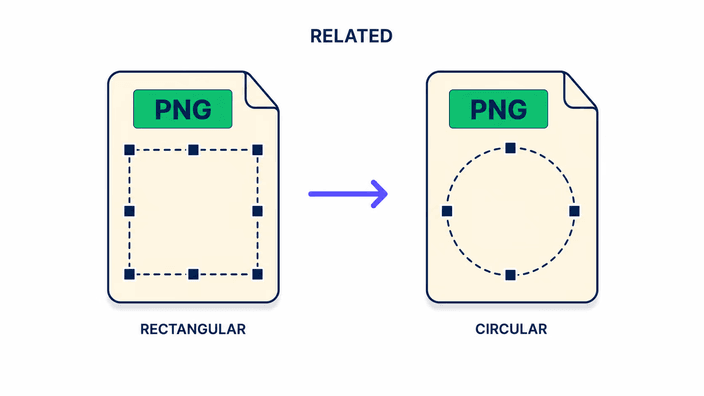
This tool crops rectangles only: squares, landscape, portrait, and custom pixel dimensions. For a circular crop, a profile picture with transparent background corners, use Circle Crop. It shares the same browser-side processing but outputs a round PNG. For platform-specific presets with default dimensions already set (Instagram 1080×1080, YouTube thumbnail 1280×720, Facebook cover 1200×630), the preset crop pages in the Crop family open with those dimensions pre-loaded.

How to crop a photo into a circle

  1. Upload image

    Open the tool and drop your JPG, PNG, WebP, or AVIF file onto the upload area, or click to browse for the file on your device.

  2. Pick a ratio or pixel size

    Tap a ratio chip (1:1, 16:9, 9:16, 4:5, 3:2, 4:3, or A4) or type exact pixel dimensions in the width and height fields.

  3. Position the frame

    Drag the crop frame to the area you want to keep, then resize from corners or edges until the live readout shows your target output size.

  4. Crop and download

    Click Crop, choose your output format (PNG, JPG, WebP, or AVIF) on the done screen, and download the cropped file to your device.

Need a circle, resize, or format change instead?

This tool crops rectangles only. For a circular crop with transparent background, use Circle Crop. To change pixel count without cropping, use Resize. To switch format only without cropping, use Convert.

Frequently asked questions

How to crop image online?

Upload image to the crop tool, pick a ratio or type pixel dimensions, drag the selection frame over the area you want to keep, then click Crop and download. The whole process runs free online in your browser, no server upload. A typical crop from upload to download takes under ten seconds on a modern device.

How can I crop PNG images and keep transparent background?

Upload image as PNG to the crop tool, set the ratio or dimensions, position the crop frame, click Crop. On the done screen, select PNG as the output format to keep the alpha channel and transparent background intact. If you pick JPG, transparent areas become white. PNG output is lossless, so no pixel quality is lost during cropping.

How do I crop photos for Instagram without an app?

Open the crop tool in your browser, upload your photo, and tap the 1:1 chip for a square Instagram post, 4:5 for a portrait feed post that fills more of the social media feed, or 9:16 for a Story or Reel. Drag the frame to frame your subject, click Crop, download.

Which aspect ratios work for social media crops?

Use 1:1 for Instagram square, 4:5 for portrait feed, 9:16 for Story or Reel, and 16:9 for YouTube thumbnail or Twitter header. Facebook cover works at 1200×630. The tool has chips for 1:1, 16:9, 9:16, 4:5, 3:2, 4:3, plus custom pixel input for any other social media size.

Can I crop an image into a circle or a profile picture shape?

No, this tool crops rectangles only. For a circular crop with a transparent background, use the Circle Crop tool instead. It outputs a round PNG with transparent corners, perfect for a profile picture upload on Discord, LinkedIn, Slack, or Instagram. The same browser-based processing applies, your image stays on the device.

How do I crop an image to an exact pixel size for each platform?

Type the target width and height into the dimension fields on the crop canvas. The crop frame resizes to match and the live readout confirms the output in source pixels. Recommended profile picture sizes: Instagram 320×320, Twitter 400×400, LinkedIn 400×400, Discord 1024×1024, Facebook 360×360. WhatsApp 500×500.

The details

Notes from the team on craft, formats, and the small decisions behind a good round crop.

The cropperjs v2 library and what changed from v1
This tool is built on cropperjs version 2.1.1, a complete rewrite of the original cropperjs library. The v2 release replaces the old constructor-based API with a Web Components architecture. The crop canvas, the selection overlay, and the image element are all custom HTML elements registered via the browser's CustomElementRegistry. Shadow DOM handles all internal styles, no separate cropper.css file to import. The aspect ratio lock is set on the selection element itself rather than the constructor, so the ratio can change at runtime without re-initializing. The library weighs 41,960 bytes raw and 12,175 bytes gzip from jsDelivr CDN.
How output pixel dimensions are calculated (no upscale)
When you drag the crop selection, coordinates are in source-image pixel space, not CSS pixel space. This matters for high-DPI screens: a phone with a 3× device pixel ratio shows a 300 CSS pixel wide image as 900 real pixels, but selection coordinates reflect the 900 real pixels. The output file contains exactly the number of pixels the selection rectangle represents in the source. The crop calls selection.$toCanvas() from the cropperjs v2 API, an async method returning a fresh HTMLCanvasElement sized to the selection. That canvas passes to canvas.toBlob for PNG, JPG, or WebP, or to @jsquash/avif for AVIF. No upscale step is inserted. Selection 800 px wide produces output 800 px wide.
EXIF metadata removal and what is lost
Every export strips EXIF, IPTC, XMP, and ICC profile data. This happens at the canvas pipeline level: the browser draws decoded image pixels onto an HTMLCanvasElement and the canvas encodes to a new file. Canvas has no concept of metadata containers, only pixel values and encoding parameters. What is removed includes GPS coordinates, camera make and model, lens focal length, exposure settings, copyright fields, and color profile tags. For most web publishing and social media uses, stripped EXIF is preferred because GPS data can expose location information unintentionally. For professional workflows where color profile accuracy matters, use a color-managed export tool, ICC profile fidelity is not preserved here.
What happens when you crop an animated GIF
When you drop an animated GIF onto the crop tool, the browser decodes only the first frame into the image element used by the crop canvas. This is a browser behavior, not a cropperjs limitation: HTMLImageElement does not expose individual frames of an animated GIF to JavaScript in a way the canvas API can iterate. The result is that only the first frame is available for the crop selection and the final output is a still image in whichever format you choose. If you choose GIF as output, canvas.toBlob does not include a GIF encoder, so the tool explicitly rejects GIF output to avoid a silent downgrade to PNG.
Keyboard navigation and accessibility
The cropperjs v2 selection element implements keyboard navigation as part of its Web Component spec. Once you Tab to the crop selection, arrow keys move the frame one pixel at a time. Shift plus arrow moves ten pixels. Natively accessible without a screen reader workaround or custom JavaScript overlay, the keyboard handler lives inside the selection element's shadow root. Important for keyboard-only users, some assistive technology setups, and precision workflows where a trackpad cannot achieve sub-pixel alignment. Live pixel readout updates with each keystroke, so screen reader users with aria-live regions hear current dimensions change. Ahead of iLoveIMG and img2go here.
Format choice trade-offs after cropping
The format selector on the done screen gives four options. PNG is lossless, every pixel stored exactly as decoded, preserves transparent background. File size is typically three to five times larger than JPG for a photo. JPG applies lossy compression at quality 0.9, equivalent to a high quality preset in most desktop editors, no visible difference at standard viewing but the file is meaningfully smaller. WebP at the same quality produces a file 25 to 35 percent smaller than JPG with the same perceptual quality. WebP also supports lossless mode and preserves transparency. AVIF at quality 0.9 via @jsquash/avif produces the smallest output, but first encoding requires downloading an 870 KB WASM module.