Crop any photo into a circle online

Drop a JPG, PNG, WebP, or AVIF and download a transparent circle in seconds.

or drop the image here

About this tool

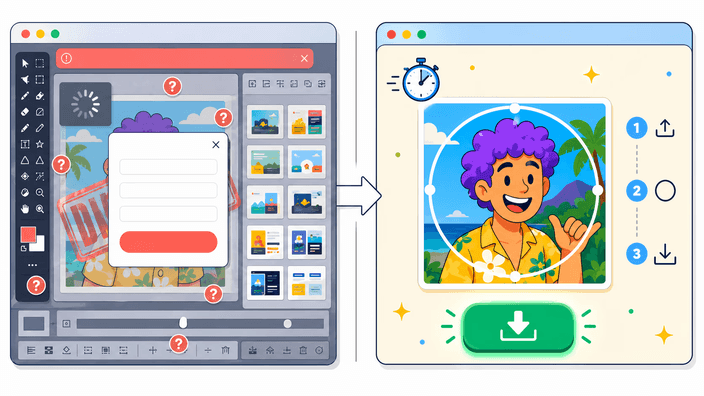
Crop any photo into a perfect circle in your browser. This free circle cropper opens your JPG, PNG, WebP, or AVIF in a masked circular stage. Drag the handles to center your subject, scale the circle to the region you want, then click Save to crop the image to a circle. The result is encoded right on your device as a transparent PNG, WebP, or AVIF circle cut-out, or a flat JPEG if you pick a background color, and downloads directly. The Network tab in DevTools shows zero outbound image requests during the whole process. The circle exports at up to 4096 px on each axis. The tool works on desktop and mobile without installing anything. Most people use it to make a square headshot or logo read cleanly in the circular avatar slots on LinkedIn, Discord, Slack, and Instagram.

Open the circle crop tool
How to crop a circle in an image

How to crop a circle in an image

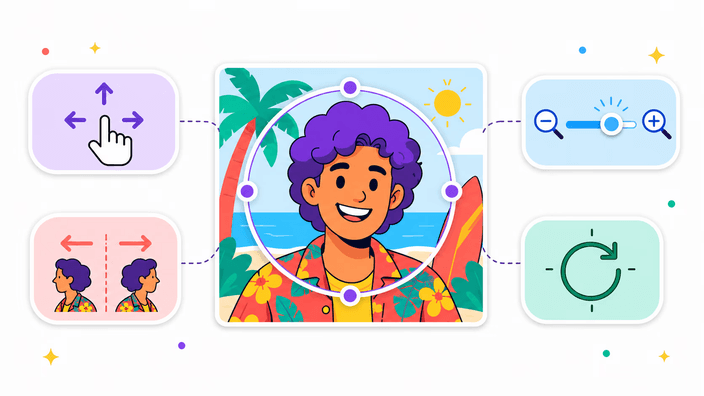
To crop a circle in an image, drop a JPG, PNG, WebP, or AVIF onto the page and it loads into a masked circular stage. A dark overlay shows you the area that gets cut away, and the bright circle in the middle is what stays. Drag the circle to center your subject, scale it with the corner handles, or pinch on touch. When the framing feels right, pick a format and click Save to crop the image to a circle. The file is processed locally and the download starts. Open the DevTools Network tab while you crop and watch it stay empty. No POST request fires during upload, drag, or save.
Pick a format and crop
Pick your output format

Pick your output format

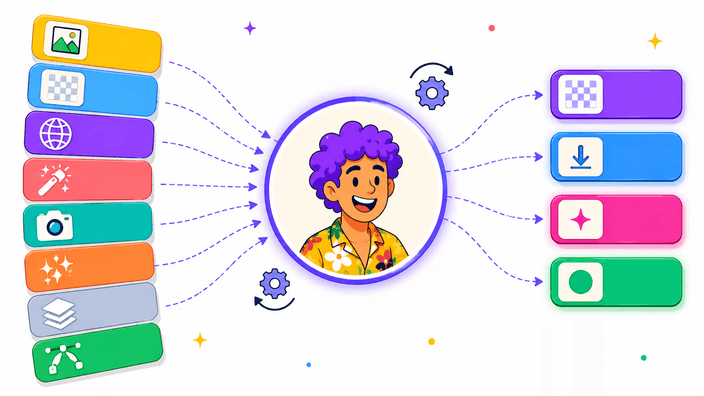
Four formats sit in the download menu. PNG keeps the area outside the circle fully transparent and is the safe default for avatars and logos. WebP also supports transparency and is typically 25 to 35 percent smaller than PNG. AVIF is the smallest of the three transparent formats, often half the WebP size, but it takes about 3 seconds to build on desktop and up to 30 seconds on a mid-range phone. JPEG produces a flat circle on a solid background color you choose. It has no alpha channel, so transparency is replaced by the fill color. Pick PNG for reliability, WebP for size, AVIF when bandwidth matters, JPEG only when the target rejects transparent files.

Crop for any social platform
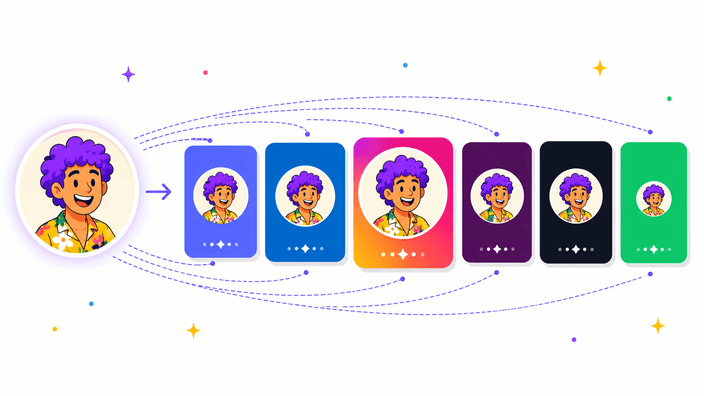
Round photos for every platform

Round photos for every platform

Most social platforms render avatars inside a circular mask, so pre-cropping lets you control what falls inside. LinkedIn shows the profile photo at 400 by 400 px on the profile page and around 48 px in the feed. Discord renders the user avatar at 128 by 128 in server member lists and 32 by 32 in chat. Instagram displays the profile picture circular at roughly 110 px on mobile, 32 px on feed thumbnails. Slack uses 36 px in the channel list. The tool exports at the original resolution, so resize first via /resize/ if you need a specific pixel size. That avoids any upscaling artifact.

Try it inside the limits
What this tool will not do

What this tool will not do

HEIC files only open on Safari 17 and newer, which reads the format natively. Chrome, Firefox, and Edge return a decode error and the tool suggests converting to JPG first. Animated GIFs export only the first frame. AVIF export is slow on mobile, around 30 seconds for an 8 megapixel input, so PNG or WebP is the better pick there. The circle position is always manual. There is no AI auto-detection of faces or subjects, you frame the crop yourself.

Crop in your browser now
How your image stays on your device

How your image stays on your device

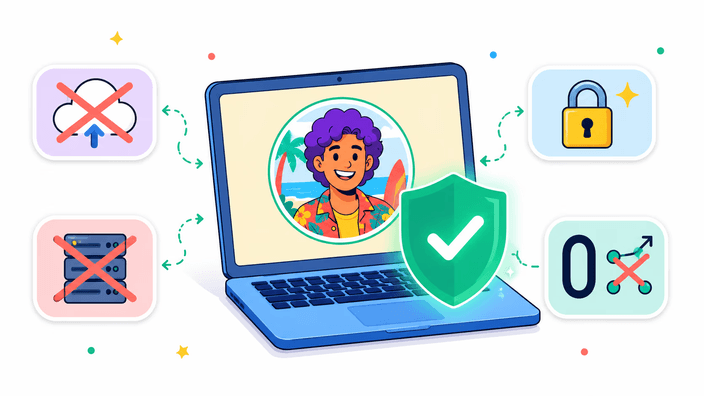
The crop and the encode both happen on your device. The downloaded file is built in your browser's memory, never sent anywhere. Open DevTools, switch to the Network tab, clear it, then upload an image and crop. No new POST or PUT request appears carrying image data. When you click Save, a short local request flickers through the panel as the browser hands you the file. That is the local download, not an upload. This works the same in Chrome, Firefox, Safari, and Edge.

Make your round profile picture
Round profile picture for every social platform

Round profile picture for every social platform

A profile picture matters because it is the first thing other people see. Most platforms render avatars in a circle, so the square you upload gets cut at the edges. Doing the crop yourself controls what stays inside the circle and what falls away. The same applies to round logos for a brand, team-photo badges in a directory, server icons on Discord, and sticker art. One thing worth noting: a headshot reads better with a small margin around the head, not a tight crop right at the hairline. Center the eyes a little above the middle of the circle and the result looks balanced at every render size.

How to crop a photo into a circle

  1. Drop your image onto the page

    Click the upload area or drag a JPG, PNG, WebP, AVIF, or GIF file directly onto it. The circular crop stage opens automatically.

  2. Position the circle over your subject

    Drag the circle to center your face or logo. Pinch or scroll to scale it until the framing looks right.

  3. Choose an output format

    Select PNG or WebP for a transparent circle, AVIF for the smallest file, or JPEG if you need a solid background color.

  4. Click Save and download your file

    The browser encodes the result locally and downloads it to your device. The filename keeps your original name with -circle appended.

Need a rectangle, not a circle?

This tool ships one shape, the circle. For free-ratio rectangles use crop image. For Instagram feed (1080 by 1080) use crop to square or one of the per-platform crop tools.

Frequently asked questions

How do I crop a photo into a circle?

Drop your image onto the crop stage. The tool accepts JPG, PNG, WebP, AVIF, GIF, and BMP. It opens with a circular selection already centered. Drag the circle to frame your subject, adjust the size with the corner handles or a pinch gesture, then click Save. The result downloads as a transparent PNG by default. The whole process takes under 30 seconds for a typical photo.

What file formats are supported?

Input accepts JPG, PNG, WebP, AVIF, GIF (first frame only, animation is not preserved), BMP, and SVG. HEIC works on Safari because Safari reads it natively. On Chrome, Firefox, and Edge, HEIC files are rejected with a friendly error. The format is detected by reading the file's signature bytes, not the filename extension, so a renamed file is still identified correctly.

What image formats can I download?

The download menu offers four options. PNG preserves transparency outside the circle and is the default. WebP is typically 25 to 35 percent smaller than PNG and also supports a transparent background. AVIF is the smallest of the three transparent formats but can take up to 30 seconds to encode on a mid-range phone. JPEG produces a flat circle with a background color you pick. It does not support transparency.

Can I create a transparent background?

Yes. PNG, WebP, and AVIF all support an alpha channel, so the area outside the circle is fully transparent. When you open the downloaded file in most design tools or messaging apps, the background shows as a checkerboard, which indicates transparency. JPEG does not support transparency, so choosing JPEG prompts you to pick a fill color for the outside area.

Why crop images into a circle?

Most social platforms render profile pictures, avatars, and server icons in a circular frame. Uploading a square photo and letting the platform auto-crop often cuts off the subject's face or puts dead space in the frame. When you crop a circle yourself, you control exactly what shows inside the circle before uploading, and the circle cut-out drops cleanly onto any background. The same applies to round logos, team-photo badges, and branded sticker art.

Can I use this tool on my mobile device?

The tool runs in any modern browser on iPhone, iPad, and Android phones. Drag handles respond to touch and pinch gestures. The main limitation on mobile is AVIF export time. A high-resolution photo can take 30 seconds or more, because AVIF is heavy to build on a phone. PNG and WebP are much faster and work well on mid-range devices.

Is this a free circle cropper?

Yes. This circle cropper is free with no watermark on the output. To crop an image to a circle, drop it on the page, position the round selection, and download the circle cut-out as a transparent PNG, WebP, or AVIF. The round crop runs entirely in your browser, so your photo stays on your device.

The details

Notes from the team on craft, formats, and the small decisions behind a good round crop.

How the circular crop mask is drawn
The circular crop is not a CSS rounded-corner trick. You see the full image with a dark overlay, and the circular selection region updates live as you drag the handles. When Save is clicked, the image is drawn at the selected dimensions and everything outside the circle is masked away. For PNG, WebP, and AVIF the result keeps a transparent alpha channel outside the circle. For JPEG, which has no transparency, the outside pixels are filled with a solid color you choose before the file is built. The whole operation runs on your device, with nothing uploaded.
PNG, WebP, AVIF, and JPEG for circular crops
PNG is lossless and universally supported. A 512 by 512 circle export from an 8 megapixel photo averages 180 to 350 KB depending on photo complexity. WebP is visually lossless at quality 85 to 90, 25 to 40 percent smaller than PNG, and supported in every browser shipped after 2023. AVIF, using AV1 compression, is typically 40 to 50 percent smaller than WebP at equivalent visual quality, but it takes longer to build. About 3 seconds on desktop, and up to 30 seconds on a mid-range mobile for an 8 megapixel input. JPEG is the fastest, around 400 ms on desktop, but it has no alpha channel. Use JPEG only when the destination platform rejects transparent files, which happens with some Slack integrations and some email clients. Most users should pick PNG for reliability or WebP for size.
Platform sizing guide for circular avatars
Different platforms render avatars at different sizes inside the circular mask. LinkedIn: profile photo at 400 by 400 px minimum, shown in a circle on the profile page and at around 48 px in the feed. Discord: guild icon at 512 by 512 max, user avatar at 128 by 128 in server member lists and 32 by 32 in chat. Instagram: profile picture circular at roughly 110 px on mobile profile, 32 px in feed thumbnails. Slack: workspace avatar up to 512 by 512, rendered circular in the channel list at about 36 px. The tool exports at the original photo resolution. If you need an exact output size, resize the image first using /resize/ before running the circle crop. That gives pixel-accurate output without any upscaling artifact.
HEIC and the Safari-only limitation
HEIC is Apple's photo format using HEVC compression. Safari 17 and newer reads HEIC natively, which is why circle-cropping an iPhone photo works in Safari without any conversion step. Chrome, Firefox, and Edge do not read HEIC as of 2026 and return a decode error. The tool checks the file's signature bytes on upload. If a HEIC file is detected on a non-Safari browser, a friendly error suggests converting to JPG first. The workaround for non-Safari users: open the photo on an iPhone in the Photos app and share as JPG (available in the share sheet), or use /heic-to-jpg/ if you already have a HEIC file on a desktop. Note that a .heic file renamed to .jpg is still rejected, because the signature check catches the rename.
Why the area outside the circle is transparent
When you export a PNG or WebP circle crop, the pixels outside the circle boundary have an alpha value of 0, meaning fully transparent. On platforms that render avatars inside a circular frame, the transparent background becomes invisible and the platform's own background color shows through cleanly. On platforms that show the file at full size, like a file attachment preview or a photo album view, the transparent area shows as a checkerboard. If you paste the circle into a design tool like Figma or Canva, you can layer it over any color without a white halo artifact. The JPEG option exists for cases where transparency causes problems. Some email clients, some CMS image uploaders, and some older platforms strip transparency and replace it with black. Using JPEG with a chosen fill color avoids that.
Verifying in-browser processing with DevTools
Anyone can verify the no-upload claim hands-on. Open the browser DevTools (F12 or right-click then Inspect), go to the Network tab, click Clear to remove previous entries, then upload an image to the circle crop tool and drag the handles. Watch the Network tab during the upload and during the crop drag. The only requests that appear are for page assets (JS, CSS, fonts) loaded before the upload. No new POST or PUT request carrying the image data shows up. After clicking Save, a single request to a blob: URL appears in the tab for a fraction of a second. That is the browser resolving the local blob, not sending data to a server. This verification works in Chrome, Firefox, Safari, and Edge.