Resize Image Online Free, Set Exact Pixels in Browser

Upload image to resize for social media, web, or email. Set exact pixels or percent preset.

or drop the image here

About this tool

Resize image online free, right in your browser, to the exact pixel dimensions you need for social media, web pages, profile picture uploads, or email. Upload image as JPG, PNG, WebP, or AVIF on the page, then type a custom width and height, or pick a quick percent preset: 25%, 50%, 75%, 150%, or 200% of the original. Aspect ratio locks automatically to prevent stretching. A toggle clamps the output when the target exceeds the source, so nothing accidentally blows up. After resize, choose your output format: PNG for lossless quality, JPG for the smallest file, WebP for modern compression, or AVIF for the most compact result. A quality slider for lossy formats balances sharpness against file size. Resizing an 8 MP photo to 2 MP and encoding to WebP takes about 1.25 seconds on a modern desktop. Fits developers, photographers, and anyone needing a fast pixel change.

Open the resize image tool
How to resize image online in your browser

How to resize image online in your browser

Upload image to the resize tool and the browser reads it via the File API. No pixel of your photo is sent to a server: this is a free online resize tool that runs entirely on your device. Open DevTools, switch to Network, upload image, click Resize. The page loads tool code but zero requests carry your image. Result downloads straight as a file. The resampling uses a Lanczos filter with adaptive sharpening, the same approach professional editors use to resize image content for print and web.
Resize image now
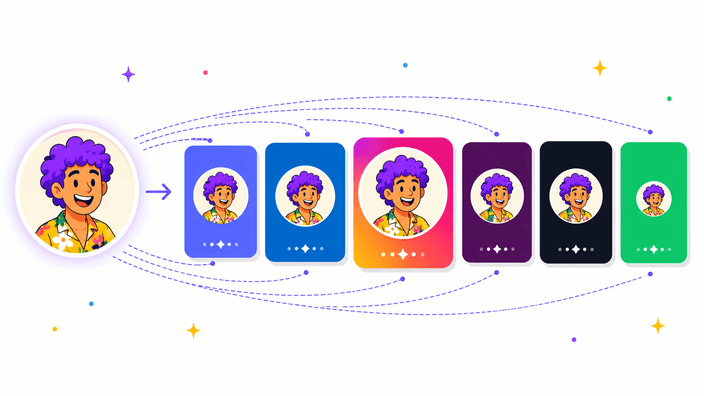
Set exact dimensions for social media or profile picture

Set exact dimensions for social media or profile picture

Type the target width for any social media post or profile picture upload, height updates automatically. The aspect ratio lock keeps the image from stretching when you only set one side. To unlock, click the chain icon between the two inputs. Five percent presets do quick math for you: 25%, 50%, 75%, 150%, 200% of the original. Toggle "Do not enlarge if smaller" so the tool will not invent extra pixels when your target exceeds the source dimensions.

Resize image now
Choose your output format: PNG, JPG, WebP, or AVIF

Choose your output format: PNG, JPG, WebP, or AVIF

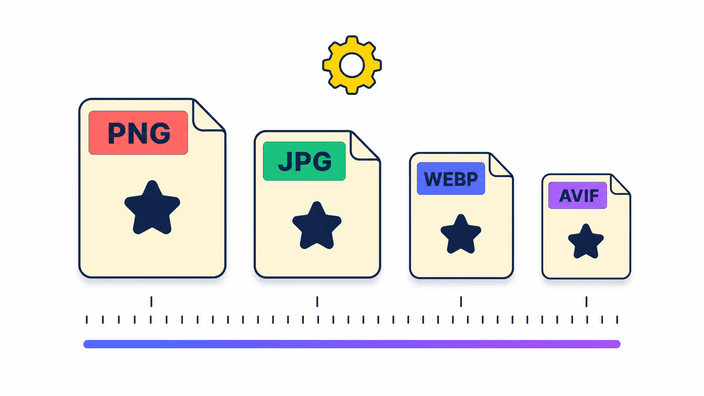
Pick the download format on the done screen. PNG is lossless and keeps a transparent background. JPG is smallest for photos where slight quality drop is fine. WebP delivers JPG-class compression with better quality retention, every major browser since 2020 supports it. AVIF produces the smallest output, typically 30-50% under JPG at equal quality, though it takes longer on Firefox and older devices. The quality slider applies to JPG, WebP, and AVIF only, PNG ignores it.

Resize image now
Resize vs compress: what is the difference?

Resize vs compress: what is the difference?

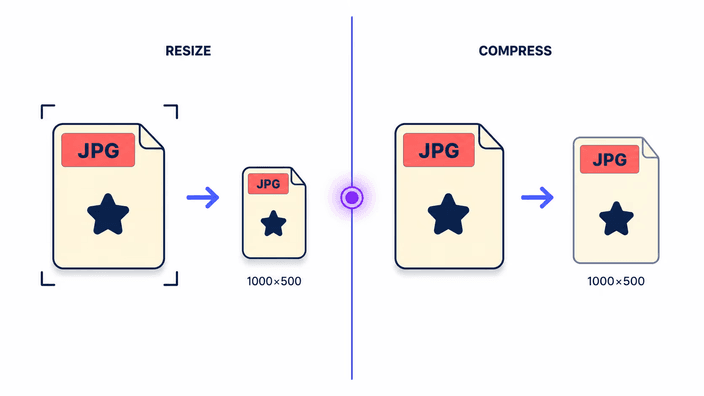
Resizing reduces the pixel count in an image. Compression reduces the file size by encoding the same pixels more efficiently. Both shrink the file in different ways. Resizing a 4000×3000 photo to 1200×900 makes the image physically have fewer pixels. JPG compression at quality 80 instead of 100 shrinks the file without changing pixel count. Often you want both: first resize, then compress with the quality slider for a smaller final file.

Resize image now
What to expect when enlarging an image

What to expect when enlarging an image

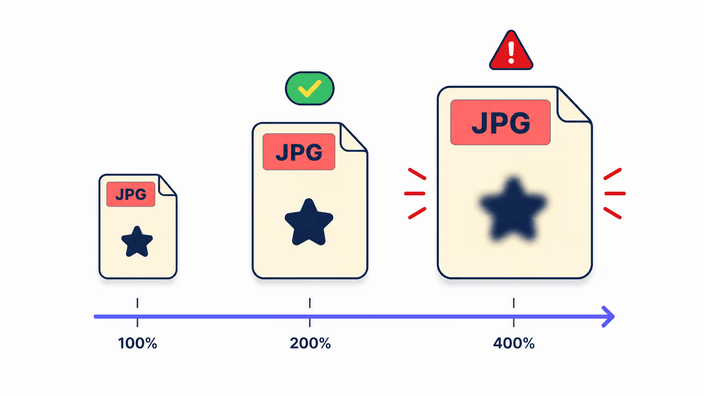
Enlarging an image, say from 1000×750 to 2000×1500, means inventing pixels the original did not have. Lanczos interpolates from existing pixels, but the result will always look softer than a real higher-resolution source. 2× enlargements look acceptable for most photos. 4× is clearly soft. Past 4×, blur artifacts appear. For AI-based upscaling that reconstructs detail with machine learning, use our Upscale 2x tool instead. It works well on photos but cannot recover detail that never existed.

Resize image now
Which image formats you can resize here

Which image formats you can resize here

Input accepts JPG, PNG, WebP, and AVIF. These four cover all modern photography and web graphics needs, including profile picture uploads on Discord, LinkedIn, and Instagram. GIF is partial: only the first frame decodes. HEIC, TIFF, PSD, and RAW are not direct, convert them first with the Convert tool. Output can be any of the four regardless of input, so you can also use this tool as a one-step converter plus resizer. PNG output preserves transparent background pixels untouched.

How to crop a photo into a circle

  1. Upload your image

    Open the tool and drop a JPG, PNG, WebP, or AVIF file on the upload area, or click to choose a file from your device.

  2. Set the size

    Type target width or height in pixels (the other follows to keep aspect ratio), or pick a 25-200% percent preset.

  3. Pick the output format

    Select PNG, JPG, WebP, or AVIF on the done screen. Adjust the quality slider for lossy formats before download.

  4. Download the result

    Click Download to save the resized file to your device. Nothing is sent to a server, the file comes straight from the browser.

Need to compress, crop, or convert instead?

Resize changes pixel count. To shrink the file without changing dimensions use Compress. To frame a specific area use Crop image. To switch format only without resizing use Convert.

Frequently asked questions

How to resize image online?

Upload image to the resize tool, type the target width or height in pixels (the other follows to keep aspect ratio), or pick a 25-200% percent preset. Pick the output format on the done screen and download. The full process runs free online in your browser in seconds.

Does resizing affect image quality?

Downsizing keeps excellent quality thanks to Lanczos resampling, the industry standard for photo downsampling. Upsizing always causes some softness because pixels must be invented. PNG output is lossless at the pixel level. JPG, WebP, and AVIF expose a quality slider so you control the trade-off.

Which formats are supported?

Input accepts JPG, PNG, WebP, and AVIF (plus GIF, first frame only). Output can be PNG, JPG, WebP, or AVIF. HEIC, TIFF, PSD, and RAW are not direct, convert them first with the Convert tool. All four output formats work in every modern browser.

Can I keep the image aspect ratio?

Yes, the aspect ratio lock is on by default. When you enter one dimension, the other updates automatically to keep the ratio. To unlock and set both independently, click the chain icon between the two inputs. Useful when you need a specific display size and accept some image distortion.

What are the recommended profile picture sizes for each platform?

Instagram profile picture: 320×320 px (displayed as 110×110). Twitter/X: 400×400 px. Facebook: 170×170 displayed but upload 360×360 for retina. LinkedIn: 400×400 minimum, 800×800 recommended. Discord: 128×128 minimum, 1024×1024 recommended. WhatsApp: 500×500 px. Type each size into the width/height fields and the tool returns exactly those pixels.

How many images can I resize at once?

This tool processes one image at a time. Batch processing is not supported by design. For multiple images at once, consider desktop tools like ImageOptim or Squoosh CLI that can leverage all CPU cores. Each image here only takes seconds, so one-by-one is still fast for regular use.

The details

Notes from the team on craft, formats, and the small decisions behind a good round crop.

Lanczos resampling and why it matters
Lanczos resampling is the industry standard for photo downscaling, used by Adobe Photoshop, ImageMagick, FFmpeg, and GIMP. It convolves each output pixel with a windowed sinc function applied to nearby input pixels. The result is the mathematically optimal trade-off between sharpness and aliasing artifacts versus simpler alternatives like nearest-neighbor or bilinear. This tool uses Lanczos radius 3, matching ImageMagick's photo-downscaling default. Adaptive sharpening runs after resampling to compensate for natural softening inherent to any downsize. Result looks sharp at 100% zoom, matching web publishing standards. Implementation uses pica, the reference Lanczos library for JavaScript since 2014, used by thousands of web applications.
Aspect-ratio preserving algorithms
Aspect ratio lock prevents image distortion. When enabled, changing one dimension updates the other automatically to keep the original width-to-height ratio. The human eye is sensitive even to small distortions of faces, buildings, and other recognizable shapes, so this lock is the foundation of most photo editing. Unlocking the lock lets you set both dimensions freely, useful for banner ads where the composition needs a specific ratio independent of the original. The "Don't enlarge if smaller" toggle adds a safety layer: when enabled, the tool refuses to grow the image beyond the source's native size.
Format choice: PNG vs JPG vs WebP vs AVIF
PNG keeps every pixel exactly as encoded via lossless DEFLATE. Ideal for screenshots, large flat-color graphics, logos, and any image with a transparent background. JPG uses lossy compression with quality 1-100. Files are typically 5-10× smaller than PNG for photos, with quality loss invisible at 80-90. WebP, from Google in 2010, delivers JPG-class compression with better detail retention, supports transparency, and ships natively in every major browser since 2020. AVIF, based on the AV1 codec, produces files 30-50% smaller than JPG at the same visual quality. The trade-off is longer encode time, especially on Firefox and older mobile devices.
Upscaling pitfalls and when to use AI
Increasing an image's dimensions requires inventing pixels that never existed. Lanczos interpolates from nearby source pixels and produces smooth but soft results. 2× upscales are typically acceptable for photos. 4× upscales show noticeable softening. Past 4×, blur artifacts appear and textures, edges, and details look indistinct. For AI-based upscaling, which uses trained machine-learning models to reconstruct plausible detail from surrounding context, use the dedicated Upscale 2x tool. AI models work well on photos but still cannot recover detail that was never captured in the source, especially text and fine patterns. Stick with downsizing whenever the source has enough pixels.
Performance: where this tool wins, where it loses
The tool is designed for single images up to about 25 megapixels. Beyond that, browser memory limits on mobile may cause crashes. On a modern desktop (Apple M1, 16 GB RAM, Chrome), resizing an 8 MP source to 2 MP and encoding to WebP takes about 1.25 seconds. AVIF encoding of the same image takes about 4.5 seconds due to the heavier AV1 encoder. On a mid-range Android phone like the Pixel 5, the same operation takes 4 seconds for WebP, 12 seconds for AVIF. The tool does not support batch processing, one file at a time. For batches, use desktop tools like Squoosh CLI that leverage all CPU cores.
Privacy: why no upload matters
Most online image resize tools send the file to a server for processing. This creates a trail: a temporary copy lives on that company's infrastructure, subject to their logging practices, retention policies, and the legal requirements of their jurisdiction. This tool processes everything locally in the browser using the File API, Canvas API, and the @jsquash/avif encoding path (Apache-2.0 licensed). Your file never leaves the device. Open DevTools, go to Network, upload image, follow the flow. You will not see any outgoing requests carrying the image. Only requests are initial page load and static assets.