JPG to PDF, Turn a Pile of Photos Into One File

Add up to 50 images and get back one PDF. Shuffle the order, spin a sideways shot upright, set the page size. Your files stay put. Free, no account, no watermark.

or drop one or more JPG, PNG, or WebP, combined into a single PDF

About this tool

With Araluma you stack your JPG photos into a single PDF without signing up, without a queue, and without any daily ceiling. Pull in as many as 50 JPG, PNG, or WebP files in one drop and watch them gather into one document you can attach to a form, email, or print. Each photo becomes a thumbnail you can drag wherever you want it, and a rotate control on each one straightens a shot that came in on its side. For the page you pick A4, US Letter, or an auto shape matching each photo's own dimensions, then choose none, slim, or wide margin and set the run portrait or landscape. None of this travels anywhere because the work runs on your machine alone, and the browser network panel will show you exactly that mid build. One straight fact: each page is written as a high quality JPEG, which photos hide and sharp screenshot text reveals as a touch of softness only at full zoom.

Convert JPG to PDF
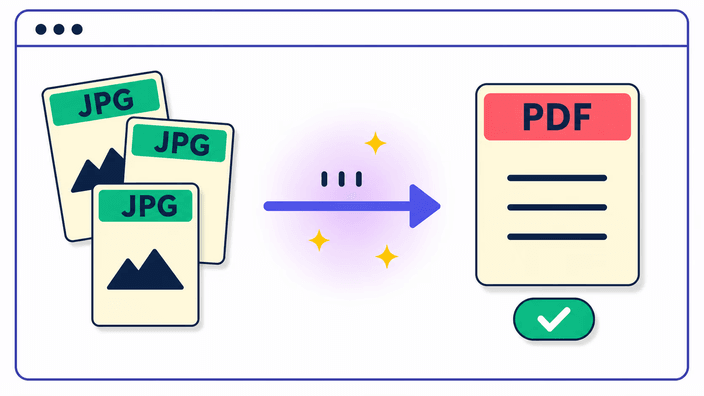
Stack a pile of photos into one PDF

Stack a pile of photos into one PDF

Drop the photos in, line them up, choose how they should look and pull down a single PDF. Up to 50 JPG, PNG, or WebP files can go in at once, and each one becomes a page in whatever sequence you decide. That is what this page is for: not a separate file per image, but a whole set of photos folded into one document you can mail off, send through a web form, or print as a batch. Nothing asks you to register and nothing needs installing, so you land on the page, drop your images and you are already working.
Convert JPG to PDF
Reorder by dragging, spin any page

Reorder by dragging, spin any page

Each photo you bring in appears as its own thumbnail. Grab a card and slide it to set the page sequence, so the shot that landed fourth can jump to page one with a single drag. A rotate control sits on every card and spins that page in ninety degree turns, the quick fix for a phone photo that came in sideways. If your filenames already run in the right order, one tap sorts the whole batch alphabetically by name. Whatever arrangement you see in the grid is precisely how the pages come out in the saved file.

Convert JPG to PDF
Choose the page shape and margin

Choose the page shape and margin

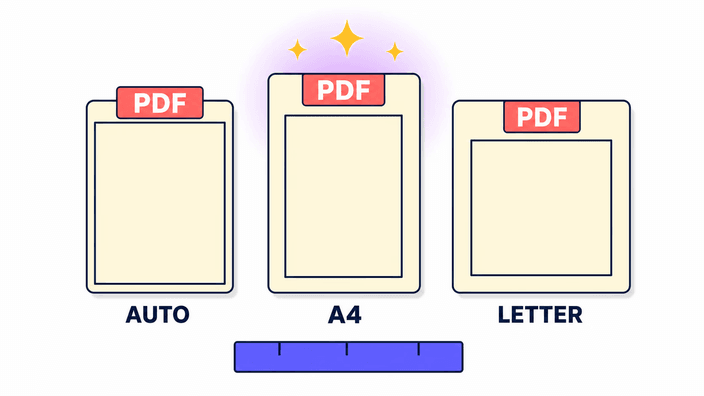
How each page is framed is up to you. Choose auto and the page borrows the exact dimensions of its photo, the look of a photo book with no leftover border. Choose A4 and every page becomes the 210 by 297 mm sheet used through most of the world. Choose US Letter for the 8.5 by 11 in sheet North America runs on. Margin is its own setting: switch it off for a photo that reaches every edge, or add a 10 mm or 24 mm frame so the picture has some air around it. A single orientation, portrait or landscape, applies to the entire run so no page looks out of step.

Convert JPG to PDF
A plain word on image quality

A plain word on image quality

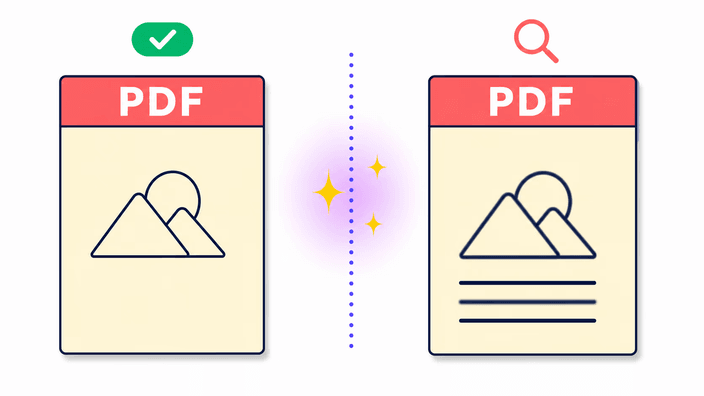
Each page inside the PDF is written as a high quality JPEG, the very format your phone already shoots in. With photographs the page is a dead match for the original. With screenshots full of crisp lettering or flat color fields, a touch of softness can turn up if you zoom right in, and that comes from how JPEG works rather than anything the tool does wrong. When a document leans on razor sharp text, that softness is the price of a small file that travels easily. On regular photos and scanned sheets you will not catch it at all.

Convert JPG to PDF
JPG, PNG, and WebP are all fine

JPG, PNG, and WebP are all fine

JPG, PNG, and WebP all go in, and there is no rule against mixing the three in one PDF. Throw in a batch of trip photos, a few PNG screenshots and a WebP export and they merge into one file with no converting beforehand. A note on PNG worth keeping in mind: a transparent background turns white when the page is laid down, because the pages here are saved as JPEG and JPEG carries no transparency. A logo or graphic that truly needs to stay see through was never a good fit for a PDF built from photos in the first place.

Convert JPG to PDF
Your images never leave your device

Your images never leave your device

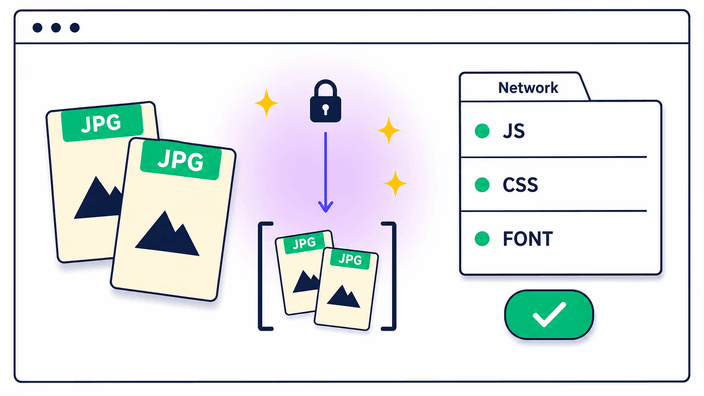
The whole PDF comes together on your own device, which means your images never make a trip to any server. The usual converters online take the opposite route: they send your files off to a remote machine, build the document there and hand it back, so your photos sit on a stranger's computer for a stretch. Here there is nothing to send and nothing held onto afterward. Want to confirm it yourself? Open the browser network panel before you build and watch the traffic, you will see the page load its own assets and not one photo heading out. It even runs with the connection cut entirely once the page has loaded once.

How to crop a photo into a circle

  1. Bring in your photos

    Open the tool and drag your JPG, PNG, or WebP files onto the drop area, or click to choose them from your device. Up to 50 go in at a time.

  2. Arrange and rotate

    Slide the thumbnail cards into the page sequence you want, and tap rotate on any card to spin a sideways photo upright before it is placed.

  3. Set shape and margin

    Pick A4, US Letter, or auto page shape, choose portrait or landscape, and set a margin of none, slim, or wide.

  4. Pull down your PDF

    Tap Create PDF and save the single file. It all came together on your device, so there is nothing left over to tidy up.

Want to crop, resize, or compress first?

Folding photos into a PDF leaves each image untouched. If you would rather frame a certain area, set a new pixel size, or trim the file weight before you build, all three run right here in the browser as well.

Frequently asked questions

How do I convert a JPG to a PDF for free?

Drop your JPG on the tool, set a page shape and margin if you like, and tap Create PDF. No account is asked for, the result carries no watermark, and nothing limits you per day. The PDF saves right away.

Can I combine multiple JPG images into one PDF?

Yes, up to 50 in one PDF. Drop the whole batch together, drag the thumbnail cards to fix the page sequence, and save a single PDF. Merging a stack of photos into one file is the core job here.

Will my image quality drop when converting to PDF?

On photos you will not notice any change. Each page is written as a high quality JPEG inside the PDF. Screenshots with crisp text can look a touch soft at full zoom, and the quality note above spells out why.

Are my photos uploaded to a server?

No. The PDF is put together entirely on your own device and your photos never head out. Open the browser network panel while it builds and you can check for yourself: not one photo leaves, which is live, checkable proof.

How many images can I add to one PDF?

Up to 50 in a single PDF. The cap looks after your device's memory, since 50 phone photos at once draw on a good chunk of working memory while the file is built.

Which image formats can I add?

JPG, PNG, and WebP, and the three can mix in one PDF. A transparent PNG background fills with white, because the pages are saved in a format that has no transparency.

Can I change the page order?

Yes. Each image is a draggable thumbnail card, so you set the sequence by sliding them around. There is also a one tap alphabetical sort by filename for the whole batch.

Can I rotate a sideways photo?

Yes. Each card carries a rotate control that turns that page in ninety degree steps, so a shot that came in sideways ends up upright. Keep in mind photos go in as the camera sensor recorded them, so a phone portrait may need a manual spin.

What page sizes and margins can I pick?

Page shapes are A4, US Letter, or auto, where each page matches its source photo exactly. Margins are none, slim, or wide, and you can run the whole document portrait or landscape.

Does it work offline?

Yes, once the page has loaded once. Since the PDF is built on your device, you can run the tool with no connection at all, say on a plane in airplane mode.

What happens if I press Back in the browser?

Each step drops a history entry, so Back walks you from the download screen to the editor and on to the start instead of leaving the page. Your photos and settings hold in memory until you navigate off or close the tab.

Is there a watermark or a daily limit?

No watermark on the PDF, no account, and no per day cap for normal use. A single ad under the tool keeps the lights on, and building a PDF never costs you anything.

The details

Notes from the team on craft, formats, and the small decisions behind a good round crop.

Why one PDF beats a folder of loose images
A single PDF is so much easier to hand off and keep in order than a scattering of separate image files. You attach one file rather than ten, the person on the other end opens a single view and pages through in the order you set, and it prints as a neat run instead of a loose pile. Forms that ask for paperwork nearly always expect a PDF, not a zip full of photos. Gathering your images into one file is the practical reason this page exists, and the ordering, rotation and sizing controls all point at that one aim: a finished file ready to share.
How the page order and rotation work
Every image you add turns into a thumbnail card you can drag, and the order on screen is the exact page order in the finished PDF. Pull a card to a new slot and the pages reshuffle on the spot, with no numbering to keep track of. The rotate control on each card spins that single page in ninety degree steps, the way you straighten a photo that arrived sideways. There is a one tap alphabetical sort by filename too, handy when the files already carry names in sequence, like a scan run that wrote page-01, page-02 and onward.
Page shape and margin, and when each fits
Auto shape makes each page match its own photo's dimensions, which suits a photo book where you want no blank edges and a full bleed feel. A4 and US Letter press a standard sheet onto every page, the right call when the PDF heads for office paper or a form that expects a fixed size. Margins hand you some room: none lays the photo edge to edge, slim adds a tidy frame, and wide leaves space for a hole punch or a note in pen. Portrait or landscape covers the whole document, so a run of wide photos can sit landscape from front to back.
The quality trade in plain words
Each page is stored as a high quality JPEG, the same sort of file your camera already turns out. JPEG keeps files small by shedding detail the eye is least likely to miss, and at the high quality used here that loss stays invisible on real photographs. It surfaces on hard edges instead: the sharp border of black text on white, or a flat block of one color, can pick up a faint halo when you zoom all the way in. For documents made mostly of photos or scans this is a non issue. For a page that is mainly crisp text, a true PDF export straight from the source app will always read cleaner than a photo of that text.
Why it can run with no connection
Because the entire PDF assembles on your own device, the tool has no need to reach a server to do its work. Once the page has loaded a single time the code it relies on already sits on your device, so you can drop photos and build a PDF with the connection switched fully off. That is the same reason your photos never go anywhere: there is no remote step anywhere in the chain. It marks a real gap from the common online converters, which upload your files, run the job on their machine and post the result back.
How this differs from a server converter
Most of the well known JPG to PDF tools online lean on a server. You send your photos up, their machine builds the PDF and returns it, and your images linger on their computer for some window afterward. That arrangement works for plenty of people, but it means your files step outside your control, often behind a daily cap or a sign up. Building the document on your own device cuts that step out: nothing goes up, nothing is parked elsewhere, and no limit governs how many PDFs you make in a day. The trade is the 50 image per document ceiling, there to protect your device's memory.